

Adding Chatroll chat to your Wix site
Follow these instructions to add Chatroll to your Wix site:
- Log in to your Wix site.
- Click Edit next to the relevant site.
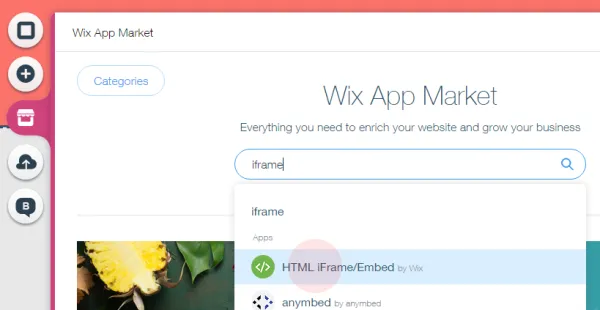
- Click the App Market button.
- Search the Wix App Market for “iframe” and choose HTML iFrame/Embed By Wix.
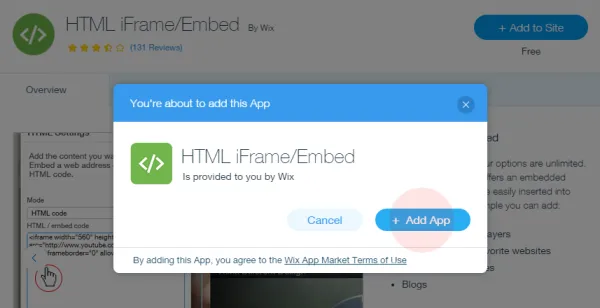
- Click Add To Site, then Add App.
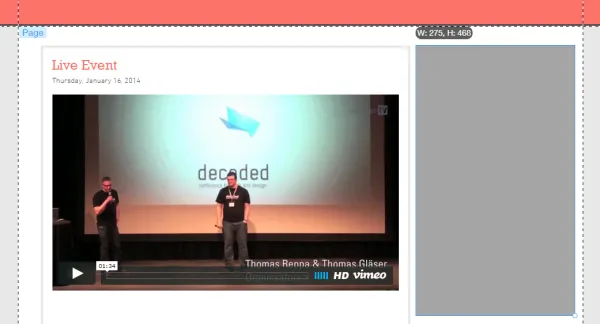
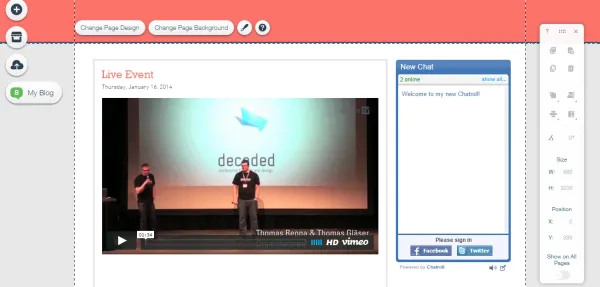
- Position the iframe to the place on the site where you want to add chat.
- Click on the iframe, then click the Enter Website Address button.
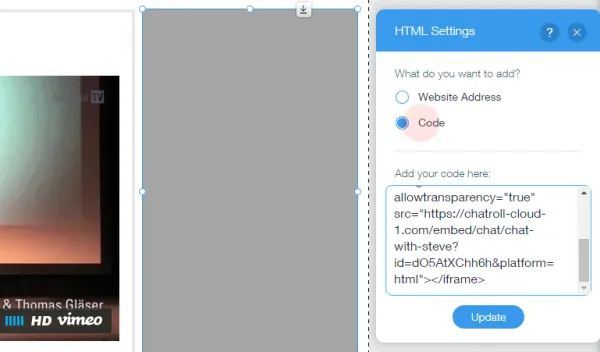
- Under What do you want to add? Click Code.
- Under Add your code here, paste your Chatroll quick embed code. You can find your quick embed code by logging in to your Chatroll account and clicking Embed Code.
- Click Update to see how your chat will look.
Copyright © 2026 Chatroll™. All rights reserved.