

Customizing the appearance of your chat
To modify the appearance of your chat, go to your chat dashboard and click Settings > Appearance.
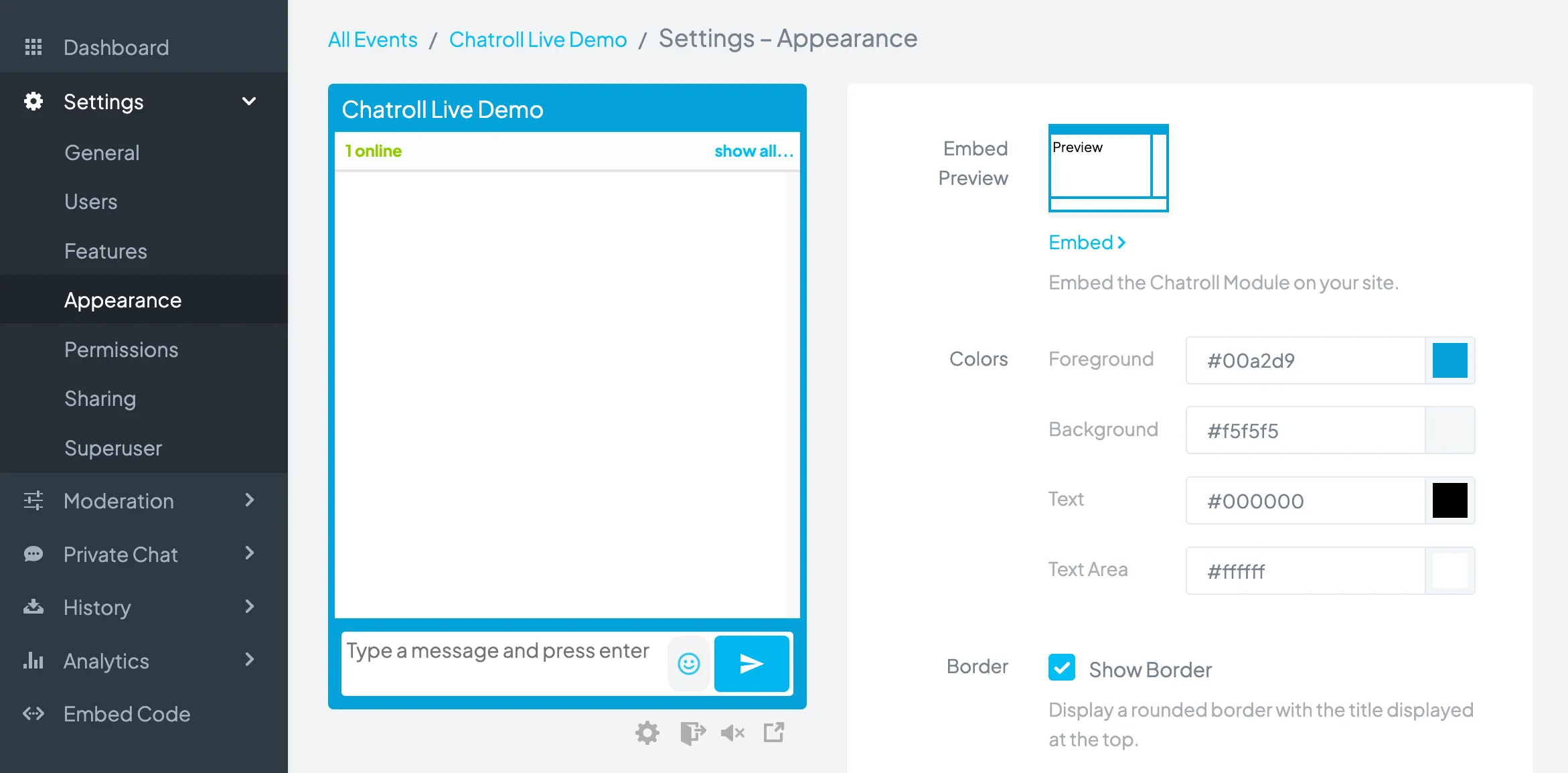
You can modify the following:
- Colors: The HTML color codes for the Chatroll module border, background, text area, and text. The updated colors are shown in the Embed Preview. For more advanced customization, see the CSS Customization section.
- Border: Allows you to remove the default chat border. Turn off the border for a more minimal look or to create your own border surrounding the module.
- User List Position: Sets the position of the user list. Setting the user list to Top or Right forces that position. Setting the user list to Automatic lets the module determine the best position based on the width of the chat. To completely hide the user list, select Hidden.
- Message Order: Determine whether new messages are displayed at the bottom or top of the chat.
- White Label: Removes all Chatroll branding from the module. For more advanced customization, see CSS Customization.
- Custom CSS: Enter CSS into the Custom CSS field to modify the look of your Chatroll module. See CSS Customization for more information.
Note: When you modify your chat’s appearance via the dashboard, the changes will only be visible on the embedded or popped out instances of Chatroll. The changes will not show in the dashboard.
Copyright © 2026 Chatroll™. All rights reserved.