

Adding Chatroll chat to your Facebook Page
To add Chatroll to a Facebook Page:
- Log in to your Facebook account.
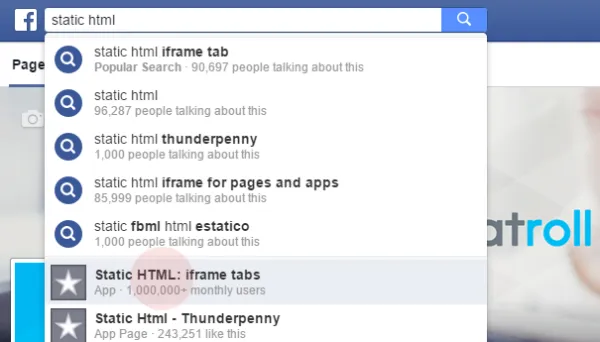
- In the search bar at the top, type "static html" and select the first result: Static HTML: iframe tabs.
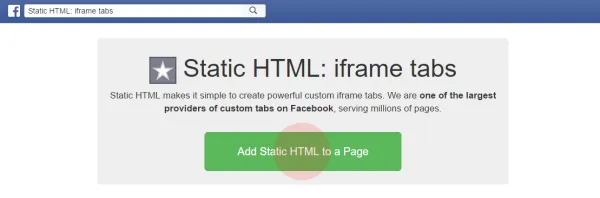
- Click Add Static HTML to a Page.
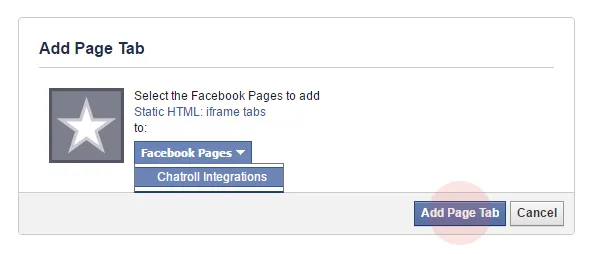
- Choose the page you want to add Chatroll to, then click Add Page Tab.
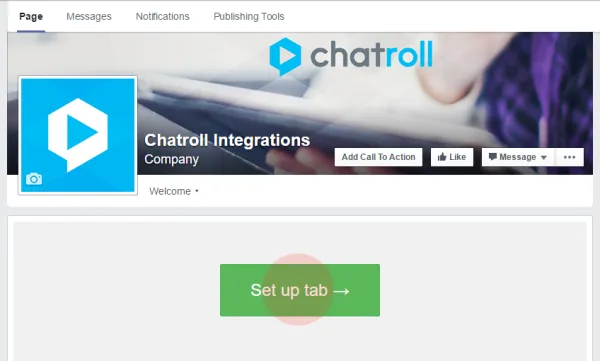
- Click the Set Up Tab button.
- Delete the content in the index.html tab.
- Paste your Chatroll quick embed code in the index.html section. You can find your quick embed code by logging into your Chatroll account and clicking Embed Code.
- Click Save & Publish.
- Click View on Facebook to see your chat on your Facebook page.
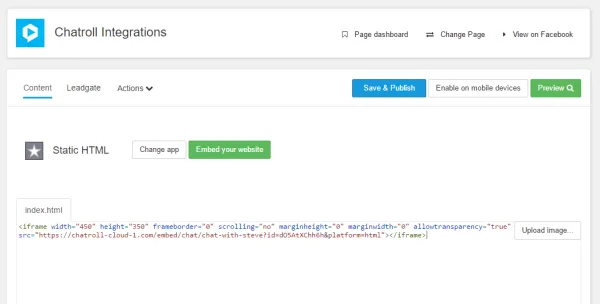
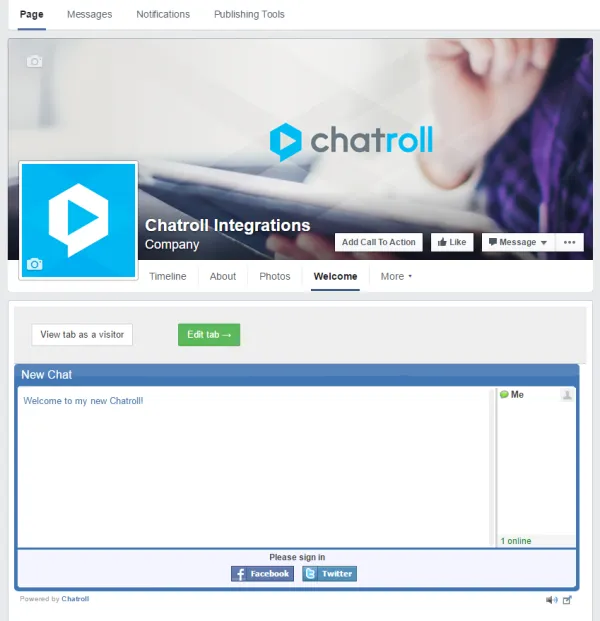
To change the size of the Chatroll module, click the Edit Tab button and change the ‘width’ and ‘height’ values of the Chatroll <iframe> tag, then click Save & Publish.
To set Chatroll as your default Facebook Page tab:
- Go to your Facebook Page. Click Edit Page on the top-right.
- Click Manage Permissions.
- Under Default Landing Tab, choose Welcome.
Click Save Changes (Note: Your users will be able to see Welcome as the default tab. You will not be able to since you are the page Admin.)
Copyright © 2026 Chatroll™. All rights reserved.